Introduction:
Scribus is a well-known desktop publishing application that allows you to create newspapers, newsletters, brochures, etc. It is free and open-source software that can be used across multiple platforms. This article is targeted at the installation method of Scribus on a Linux Mint 20 system. However, the same procedure can also be followed on a Ubuntu 20.04 system.
Installation Method of Scribus on Linux Mint 20:
For having Scribus installed on your Linux system, you will have to go through the following steps:
Step # 1: Add the Relevant Repository to your Linux System:
For adding the Scribus repository to your Linux system, you will have to run the command stated below:
$ sudo add-apt-repository ppa:scribus/ppa

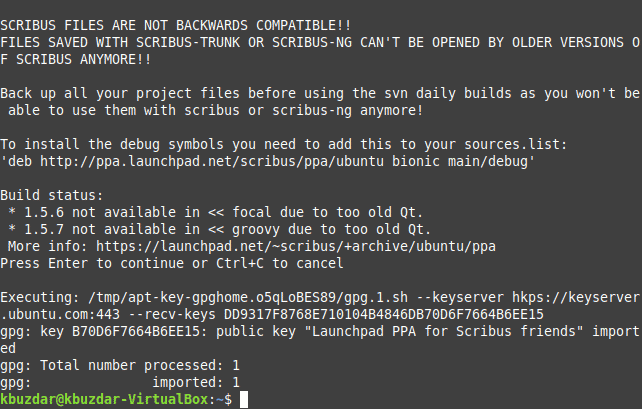
It will take only a minute to add the Scribus repository to your Linux system after which you will receive the following messages on your terminal window:
Step # 2: Update your Linux System after Adding the New Repository:
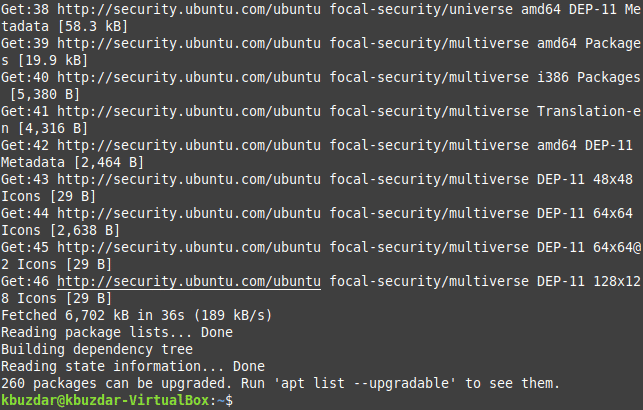
Now since you have added a new repository to your Linux system, you should update it with the command shown below:
$ sudo apt update

After updating your system, you can proceed to the installation of Scribus on it.
Step # 3: Install Scribus on your Linux System:
To install Scribus on your Linux system, you should run the following terminal command:
$ sudo apt install scribus

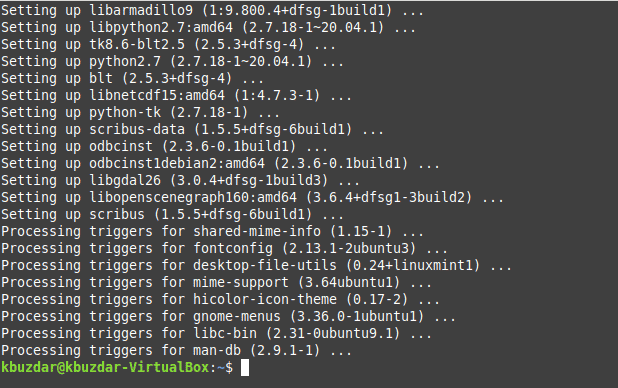
You will have to wait for a few minutes for the completion of Scribus installation on your Linux system. However, after performing this step, Scribus will be installed on your Linux Mint 20 system.
Step # 4: Check the Scribus Version on your Linux System (Optional):
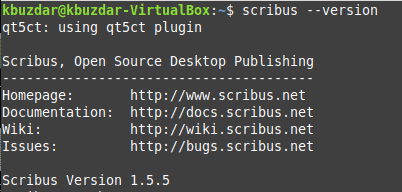
You can verify the installed version of Scribus on your system by executing the command shown below:
$ scribus --version

The Scribus version that we have managed to install after following this procedure is 1.5.5 as you can see from the following image:
Step # 5: Launch Scribus on your Linux System via the Terminal (Optional):
You can even launch Scribus from the Linux terminal by executing the command shown below:
$ scribus

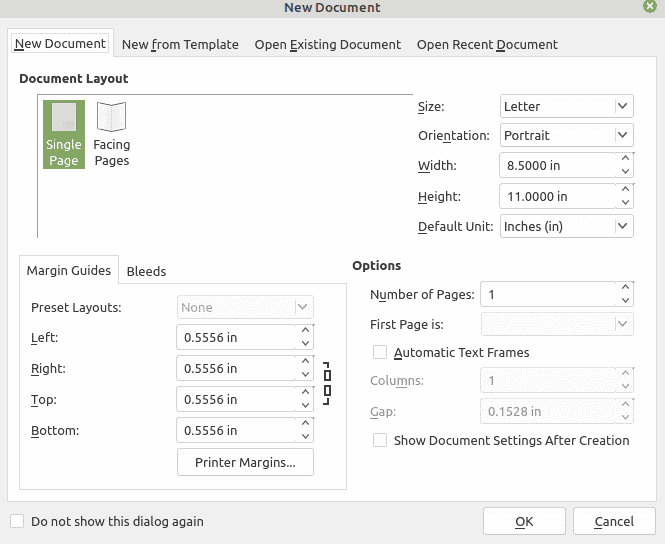
After executing this command, the Scribus window will appear on your screen which will present to you the layout of your new document as shown in the following image:
Removal Method of Scribus from Linux Mint 20:
If you want to remove Scribus from your Linux Mint 20 system, then performing the following two steps is mandatory:
Step # 1: Remove Scribus from your Linux System:
First, we will attempt to remove Scribus and all of its traces from our Linux Mint 20 system with the command shown below:
$ sudo apt-get purge --autoremove scribus

Step # 2: Remove the Scribus Repository from your Linux System:
After successfully executing the above-mentioned command, we will also remove the Scribus repository from our Linux Mint 20 system with the following command:
$ sudo add-apt-repository --remove ppa:scribus/ppa

Conclusion:
This article focused on the installation method of Scribus on a Linux system. Apart from that, we even walked you through the method of removing this software very conveniently from your system.

Karim Buzdar holds a degree in telecommunication engineering and holds several sysadmin certifications including CCNA RS, SCP, and ACE. As an IT engineer and technical author, he writes for various websites.