Introduction:
Timeshift is a very useful backup tool designed for the Linux operating system. It can help in protecting your data by creating several backups of your own choice. You can either run the backup process manually or you can even automate it to run at a scheduled time in the future. Today, we will look at the whole process of installing this backup utility on a Linux Mint 20 system.
Install Timeshift on Linux Mint 20:
To install Timeshift on your Linux Mint 20 system, you will have to perform the following steps:
Step # 1: Prepare your System for Timeshift Installation:
First, you need to prepare your system for Timeshift installation by updating it with the command shown below:
$ sudo apt update

Step # 2: Install Timeshift on your System:
Now, you can install Timeshift on your system with the help of the following command:
$ sudo apt install timeshift

Step # 3: Access Timeshift GUI with your System:
Once Timeshift has been installed successfully on your Linux Mint 20 system, you can access its GUI by first clicking on the Mint Menu icon as highlighted in the image shown below:

After that, you need to search for the Timeshift utility on your system and then click on the relevant search result as highlighted in the following image:
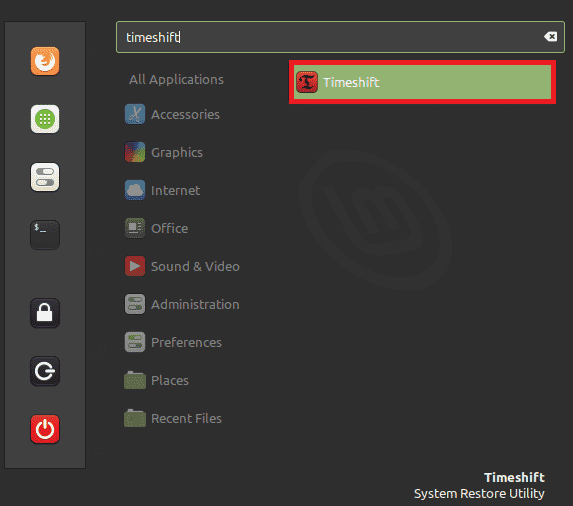
You will be asked to authenticate yourself. Just type in the login password of your account and click on the Authenticate button.

After doing all this, you will be taken straight to the Timeshift GUI as shown in the image below:

Remove Timeshift from Linux Mint 20:
To remove the Timeshift utility from your Linux Mint 20 system, you will have to execute the following command:
$ sudo apt-get purge --autoremove timeshift

Conclusion:
The Timeshift utility can be installed on a Linux Mint 20 system very conveniently by following the process explained in this article. This utility can help in creating the backups of your precious data. Moreover, it can also be uninstalled from your Linux system very easily.

Karim Buzdar holds a degree in telecommunication engineering and holds several sysadmin certifications including CCNA RS, SCP, and ACE. As an IT engineer and technical author, he writes for various websites.